 Derived
How to use Derived
Where things are and how to do the main tasks on iPhone, iPad, Mac and Apple Watch.
Getting started
You need an iPhone with iOS 26 or later, or an iPad with iPadOS 26 or later. Derived reads your workouts and daily health data from Apple Health, including the history you already have.
First launch
- Choose a plan. Without a subscription, Derived shows only the subscription screen.
- Allow access to Apple Health in Apple's sheet. It appears once and lists every type of data Derived reads or writes.
- Derived reads your history, and the screens fill in as it arrives. A Live Activity shows the progress.
Years of history can take a few minutes to read, and you can use Derived in the meantime. To change later what Derived may read or write, use the Health app.
The five tabs
On iPhone and iPad, Derived has five tabs.
| Tab | What it's for |
|---|---|
| Today | Form, last night's readings and this week's load |
| Calendar | Your training week by week, with each day's sessions, readings and events |
| Findings | How your readings change with your training, across your whole history |
| Simulate | Race plans with a projected time and its range, your routes and the Ledger |
| Profile | Thresholds, estimates, integrations, devices, privacy and settings |
Each metric has its own page. Tap All metrics at the bottom of Today.

Files and training platforms
Import a workout file
- In Calendar, tap + at the top and choose Workout.
- Tap Choose File and pick a FIT, TCX or GPX file. Derived shows what it found before anything is saved.
- Tap Add to Apple Health for a recorded session, or Add to calendar for a structured workout.
A GPX file needs timestamps to count as a recorded session. The same import is in Profile Integrations Import workout.
Connect a training platform
- Go to Profile Integrations.
- Tap Intervals.icu, Polar, Strava or Wahoo, then tap Connect.
- Sign in on the platform's own page and choose what to share.
Your sessions then come directly from the platform to your device. The token that keeps the connection open stays in your device's Keychain.
Thresholds
Threshold power, threshold heart rate, maximum heart rate and critical speed are in Profile Training profile. Each value applies from a date, and a workout is always read against the value in effect on its day.
- To take the value Derived sees in your workouts, open the threshold and tap Use under Detected from your workouts. It applies from today.
- To set a value yourself, open the threshold and tap Add entry.
- To work your thresholds and estimates out again from all your workouts, tap Recalculate history.
Reading your training
Today
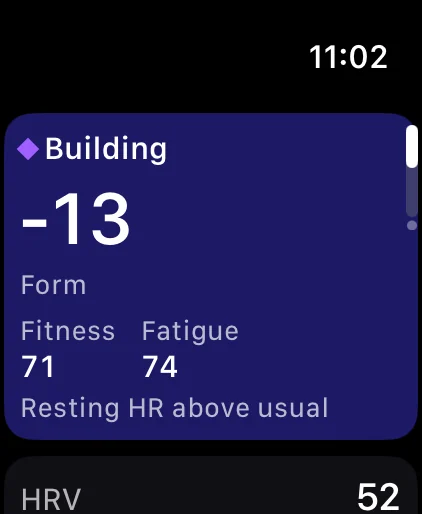
- The first card shows your form zone, form, fitness and fatigue, and this week's load against your usual week. Tap it to see fitness and fatigue over time.
- On a day with a session, the workouts come next. Each card opens its workout.
- Last night shows your resting heart rate, HRV and sleep, each against your usual range.
Calendar
- Each week shows its total load and the form it ended on. Tap the week's header for fitness and fatigue from that week on.
- Each day's column rises with that day's load. Tap a day to see its sessions, its events and Health that day.
Mark a race, an illness or a trip
- Tap + at the top of Calendar and choose Event, or open a day and tap Add to this day.
- Choose the kind: race, illness, injury, travel, altitude or something else. Illness, injury, travel and altitude can run from a first day to a last day.
Days marked as illness or injury are left out of Findings.

A workout
- Tap the chart or drag along it to read the values.
- Tap Select span and drag across the chart to limit zones, splits and the other figures to that part.
- Tap Compare to set the session beside an earlier ride on the same route or beside sessions like it.
- To export the session, open Export near the bottom, tap Export file and choose FIT, GPX, TCX or CSV.

Findings
Every result in Findings has the same parts:
- a sentence that says what Derived found
- the size of the effect, in its own unit
- its 95% confidence interval
- the number of days behind it
- Still collecting
- The result needs more days. Derived says how many.
- No clear link
- Derived found no clear link. The result is shown in the same format as the others.
- Show the work
- The method, the correction for multiple comparisons and the sources.
A finding describes how two measures moved together in your own history. Derived does not claim a cause.

Workouts and races
Structured workouts
- Calendar + Workout, then Build a workout.
- Add the steps. Targets come from your thresholds, and steps can repeat.
- Add to calendar puts the workout on a day. Open it from that day and send it to Apple Watch. Sending to Intervals.icu or Wahoo is off until you turn it on in Profile Privacy and data.
Derived doesn't suggest workouts. It sends the ones you write.
Race plans
- Simulate Plan a race, then choose a ride, run, swim or triathlon.
- Choose a course from your route library, your own sessions, a connected service or a GPX file.
- Adjust the plan: pacing, weight, equipment, weather and fueling. Each change recalculates the projected time and its range.
- Save as race adds the race to your calendar. Freeze this prediction keeps the projection as it is, and after the race the Ledger compares it with your time.

Derived for Mac
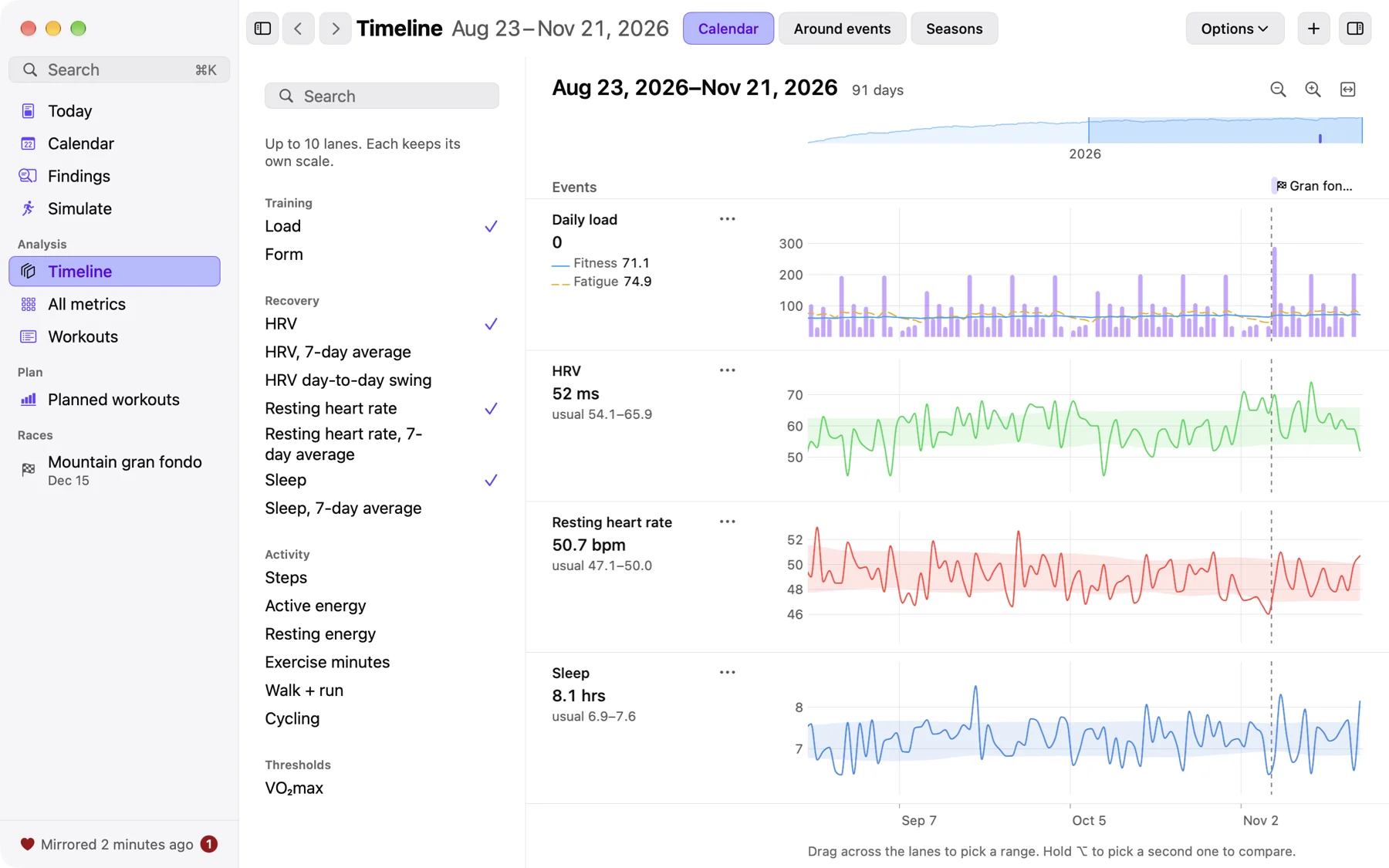
Pairing
- Open Derived on the Mac. It shows a pairing code.
- On your iPhone, go to Profile Devices, tap Scan pairing code and point the camera at the code.
- Keep Derived open on the iPhone until the first copy finishes.
After that, the Mac updates whenever Derived is open on the iPhone. When the two are on different networks, updates go through an end-to-end encrypted relay. You can turn it off on either device.
Keyboard
| Keys | Command |
|---|---|
| ⌘1 to ⌘8 | Switch between screens |
| ⌘K | Command Palette |
| ⌘L | Add Lane |
| ⌘O | Open in New Window |
iPad, iPhone Duo and Apple Watch
iPad
Derived on iPad reads Apple Health on the iPad. With Health turned on in iCloud, it has the same history as your iPhone. Notes, plans and events stay on the device where you create them, and a backup moves them. With a keyboard, ⌘1 to ⌘5 switch tabs.
iPhone Duo
When iPhone Duo is open, the list stays on one page and what you open from it appears on the other. When it's closed, Derived uses the iPhone layout.

Apple Watch
Derived on Apple Watch shows Today and your next race. To add a complication, edit a watch face and choose Derived. Workouts you send to Apple Watch appear in the Workout app.
Widgets and controls
- On the Home Screen, edit the Derived widget to choose what it shows.
- On the Lock Screen, a widget shows one figure, such as your form.
- In Control Center and on the Action button, Derived's controls open Today, add to today's calendar or open your next race plan.
- On race morning, start the Live Activity from the race day's card. It shows the start time, the projected time and the fueling plan, and it ends an hour after the start.
Your data
| Task | Where |
|---|---|
| Export a session | Export, near the bottom of the workout: FIT, GPX, TCX or CSV |
| Back up what you made in Derived | Profile Privacy and data Export backup |
| Restore a backup | Import backup, in the same place, on the same device or a new one |
| Lock Derived with Face ID or your passcode | Profile Settings |
| Delete Derived's copy of your data | Delete all app data, at the bottom of Profile Privacy and data |
A backup holds what you made in Derived: notes, thresholds, events, routes, plans and predictions. Sessions and daily values come back from Apple Health.
Deleting all app data also unpairs your devices. What Derived wrote to Apple Health stays there.
More help
The FAQ explains each screen and each number. For anything else, write to hello@peakbits.co.